Glide

Your photos.
Every one of them.

A photo viewer that shows every picture on your PC, drives and phone, newest first by month, on Windows and Android.

Free · Windows 10 and 11, 64-bit · Android 7 and up · All releases
Installing on Android?

Open the downloaded Glide.apk. The first time, Android asks you to allow your browser to install apps: turn on Allow from this source, then go back and tap Install.

Already have Glide? Installing a newer version updates it. Or use Jeti, which installs and updates it for you.
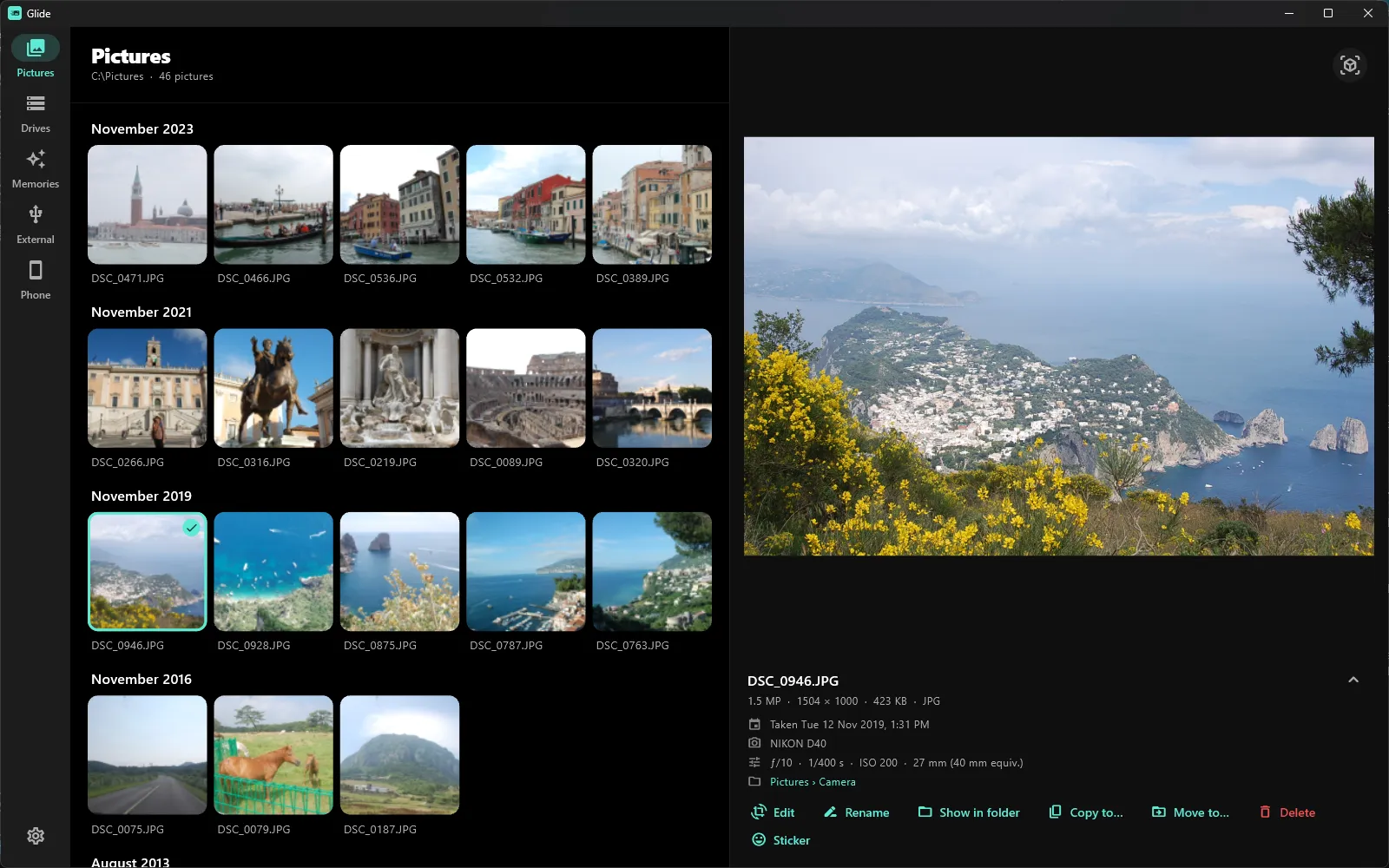
Glide on Windows, showing trips to Venice, Rome and the Italian coast grouped by month, newest first, with a photo of Capri open beside them and its date taken and camera below

Glide shows the pictures already on your PC: no accounts, no ads, and it works offline.

Open it and every picture is there, newest first and grouped by month, without any folders to click through. The same goes for your other drives, a USB stick, and an Android phone plugged in by cable. Memories brings back what you took on this day in years past.

  • Every picture, by month: dated by when it was taken, not when it was copied, with the camera and its settings shown alongside. Photos and screenshots can be shown apart.
  • The formats cameras use: JPG, PNG, GIF, WebP, HEIC, AVIF, TIFF and RAW files from most cameras.
  • Edit: crop, rotate, light and colour adjustments, and filters. You can also blur or replace the background behind the subject, found on your PC. Save over the original, or keep it and save a copy.
  • Make something new: cut the subject out as a sticker, put a few pictures together in a collage, or compare two side by side, then and now.
  • Tidy up: rename, copy, move, or send pictures to the Recycle Bin, one at a time or many at once.

Glide is on Android too, for the pictures in your phone’s gallery: the same months, Memories, editor, stickers and collages, with Share and Delete for the ones you pick. Edits are saved as a copy, so the original stays as it was.

Glide collects nothing, and your pictures never leave your device. It only goes online to ask GitHub whether a newer version is out when it opens, which you can turn off in Settings. Privacy policy

A closer look
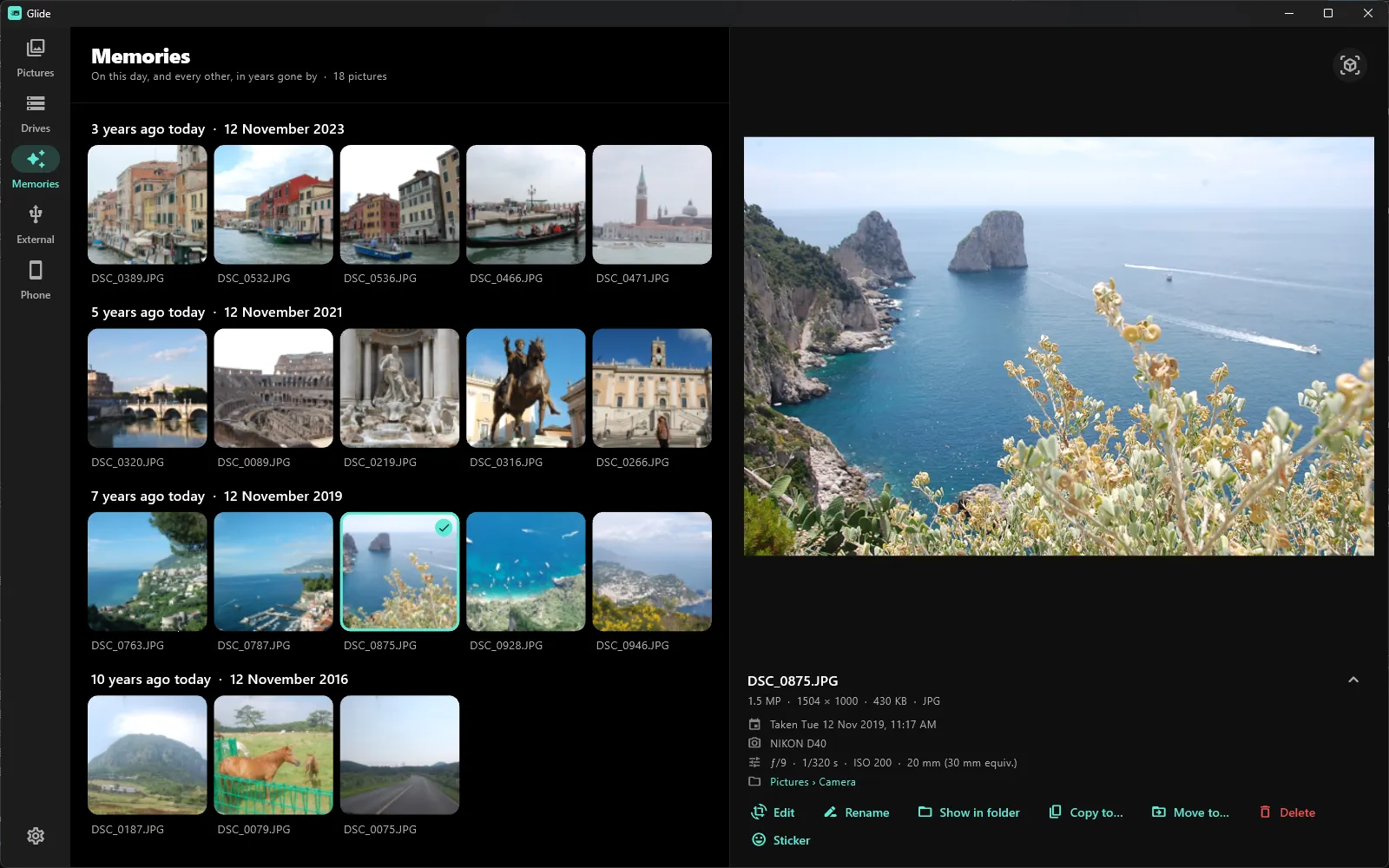
Glide's Memories tab with photos taken on 12 November in 2023, 2021, 2019 and 2016, each year under its own heading, and a photo of Capri open beside them
On this day, years ago. Memories brings back the pictures you took on today's date in years past, a year at a time, from Venice three years ago to a drive in the country ten years ago.How: Open the Memories tab on the left. Click a picture to see it bigger.
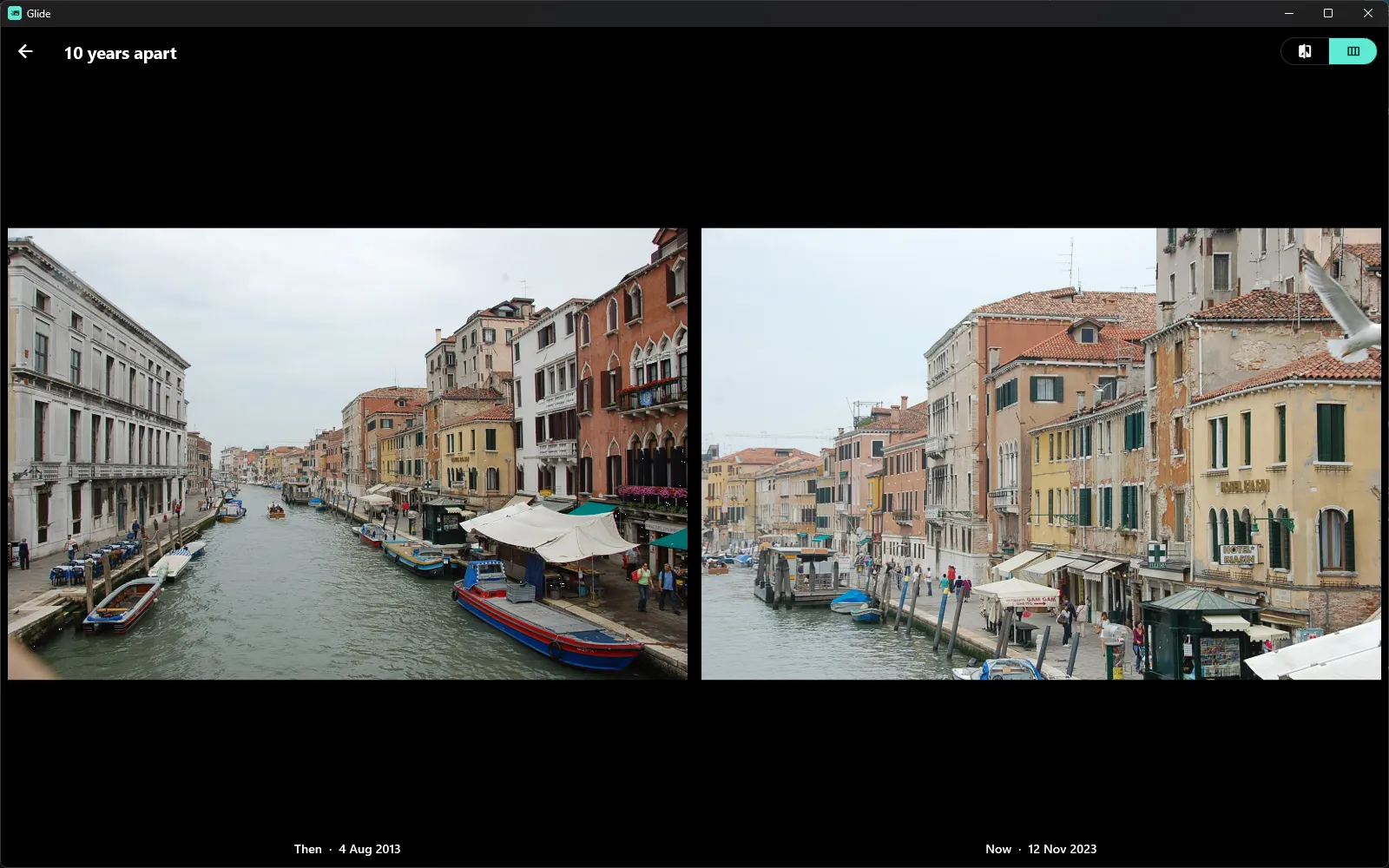
Two photos of the same Venice canal side by side, labelled Then, 4 Aug 2013, and Now, 12 Nov 2023, under the heading 10 years apart
Then and now. Put two pictures side by side, or drag a slider across one to reveal the other. Glide tells you how far apart they were taken.How: Click one picture, Ctrl+click another, then choose Compare under the preview. Switch between the slider and side by side at the top right.
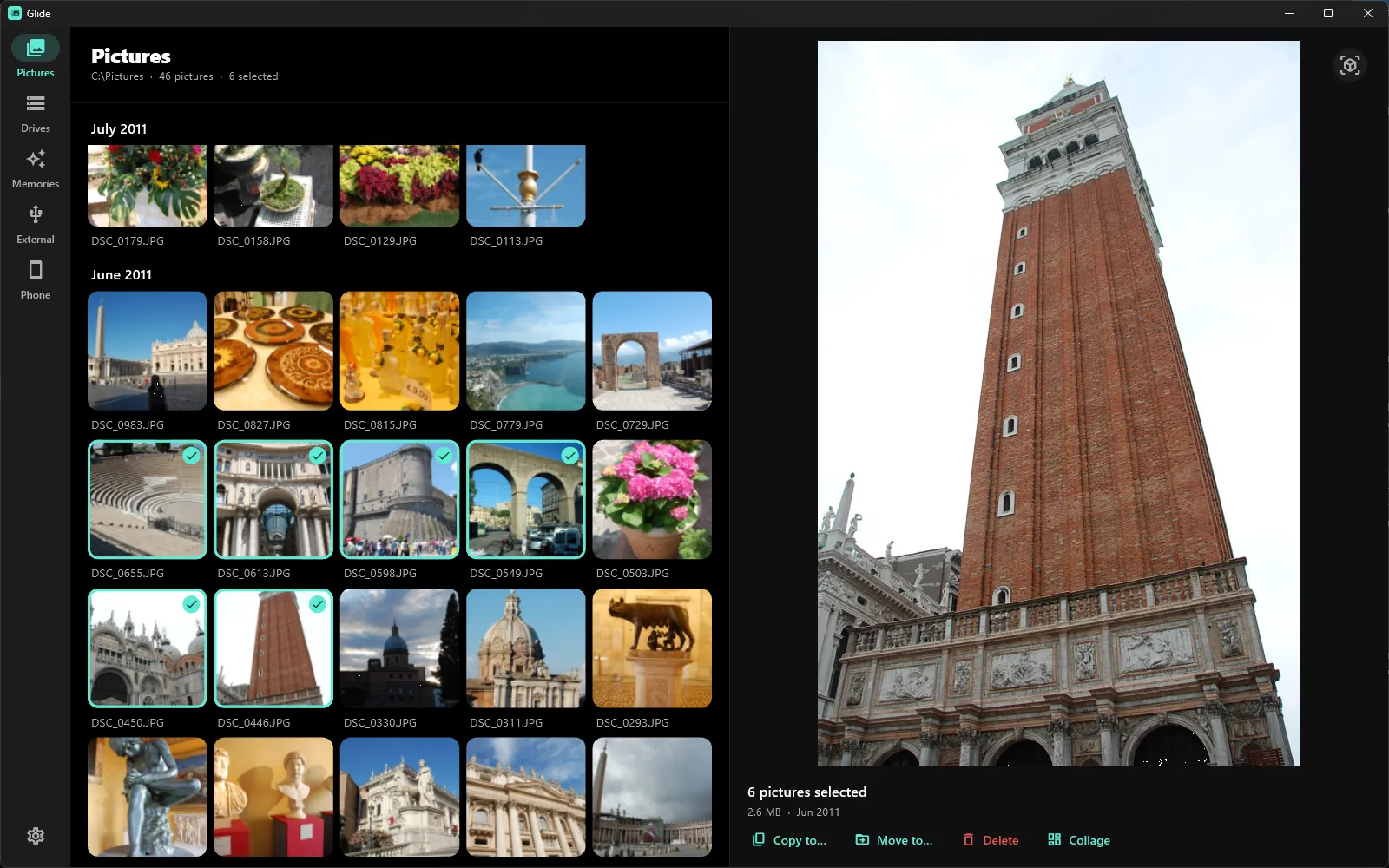
Six photos from June 2011 ticked in Glide, a run of four and two more below, with 6 pictures selected, 2.6 MB, and Copy to, Move to, Delete and Collage buttons beside them
Tidy up in one go. Pick out pictures as you would in File Explorer, with Ctrl and Shift, then copy, move or delete them together, or turn them into a collage.How: Ctrl+click to add pictures one at a time, Shift+click to take a whole run of them, or press Ctrl+A for all. The buttons appear under the preview.
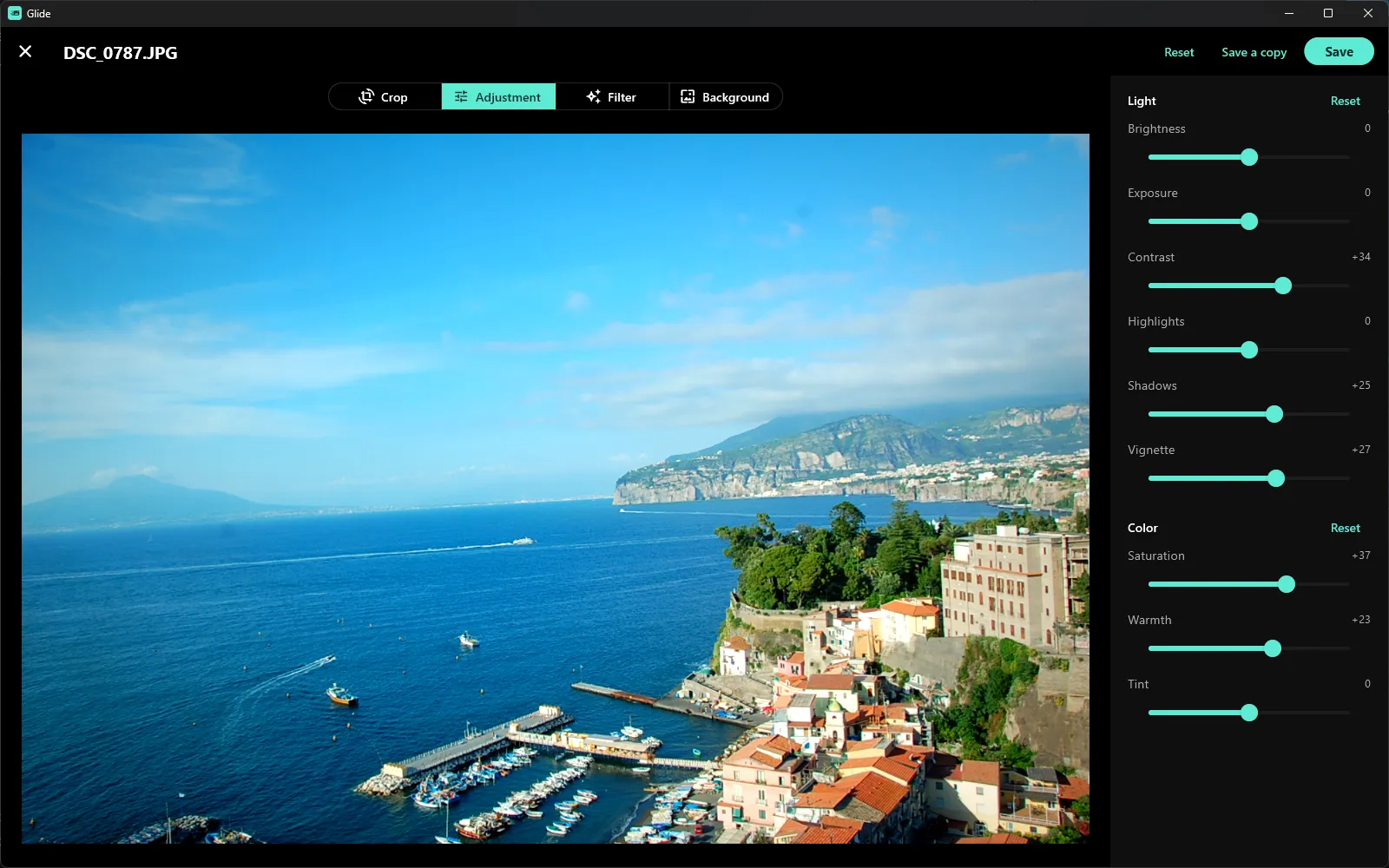
Glide's editor on a photo of the Italian coast, with contrast, shadows, vignette, saturation and warmth turned up on the sliders beside it
Make it look its best. Crop and rotate, brighten the shadows, warm up the colours, or try a filter. Then save over the original, or keep it and save a copy.How: Click a picture, then Edit (or press E). Crop, Adjustment and Filter are along the top.
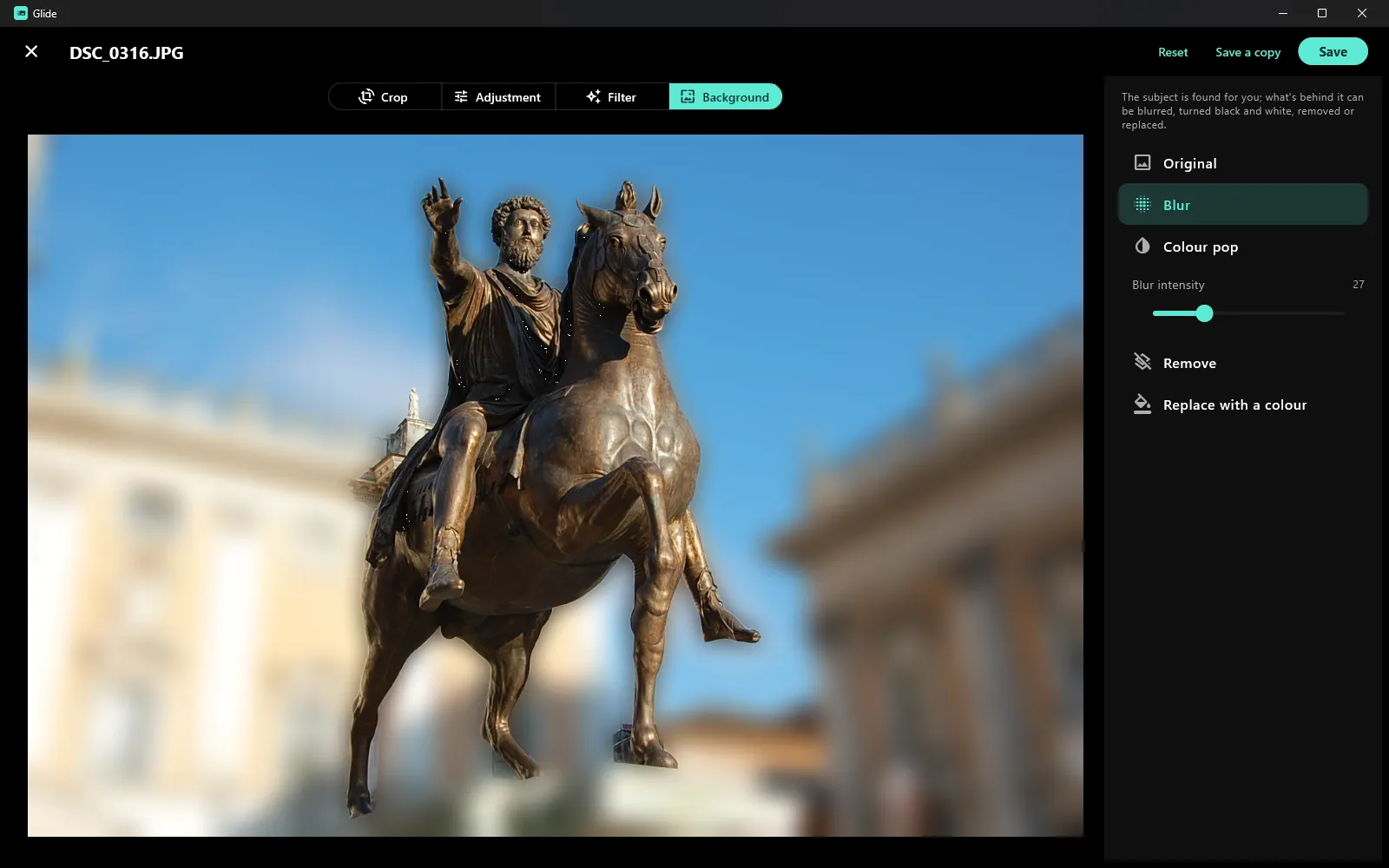
Glide's editor with the background behind a bronze horse-and-rider statue blurred, leaving the statue sharp
Blur the background. Glide finds the subject for you and softens everything behind it, like a portrait lens. A slider sets how much.How: In Edit, open Background and choose Blur. Blur intensity sets how much.
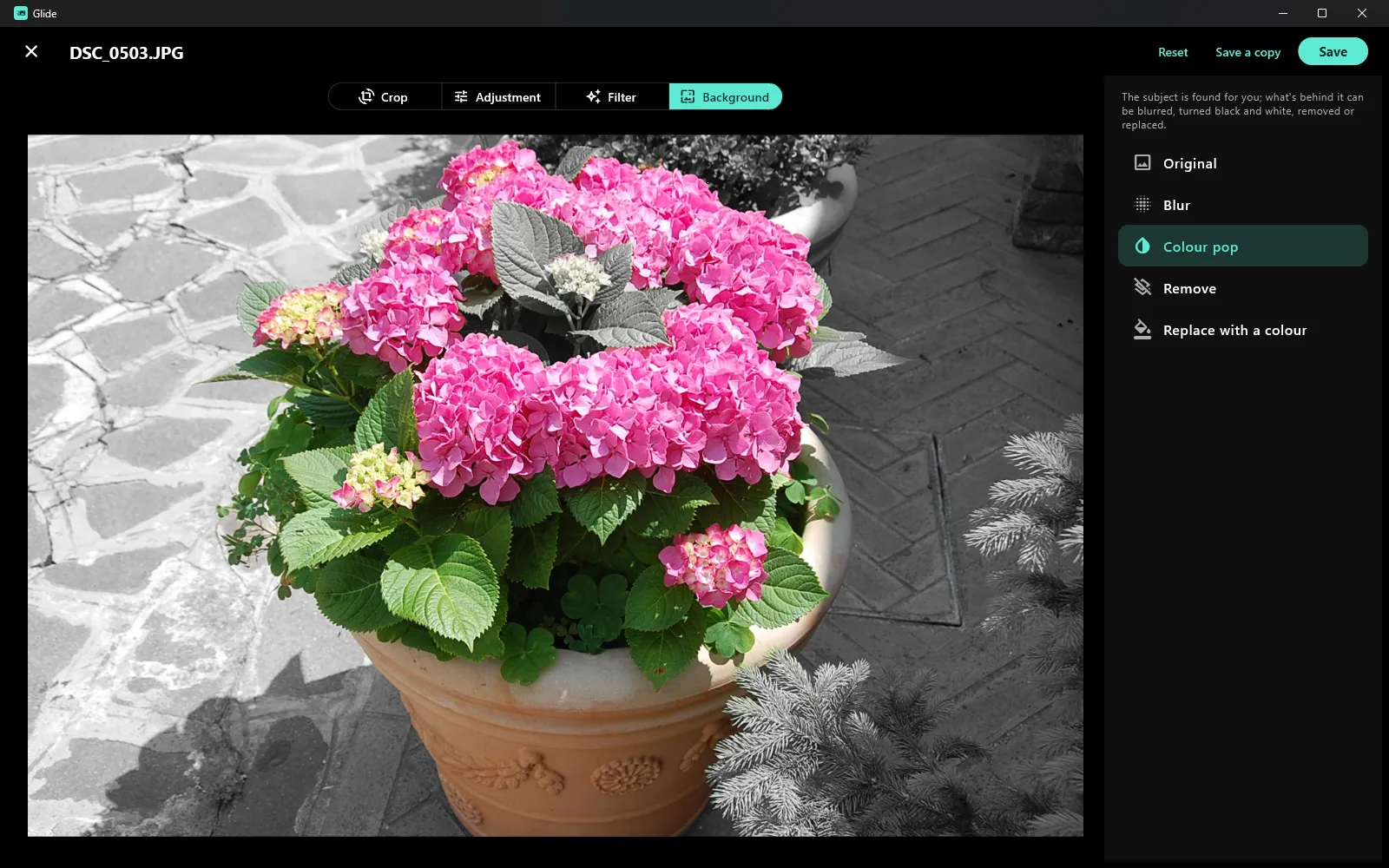
A pot of pink hydrangeas kept in colour while the paving and plants around it are turned black and white
Colour pop. Keep the subject in colour and turn the rest black and white.How: In Edit, open Background and choose Colour pop.
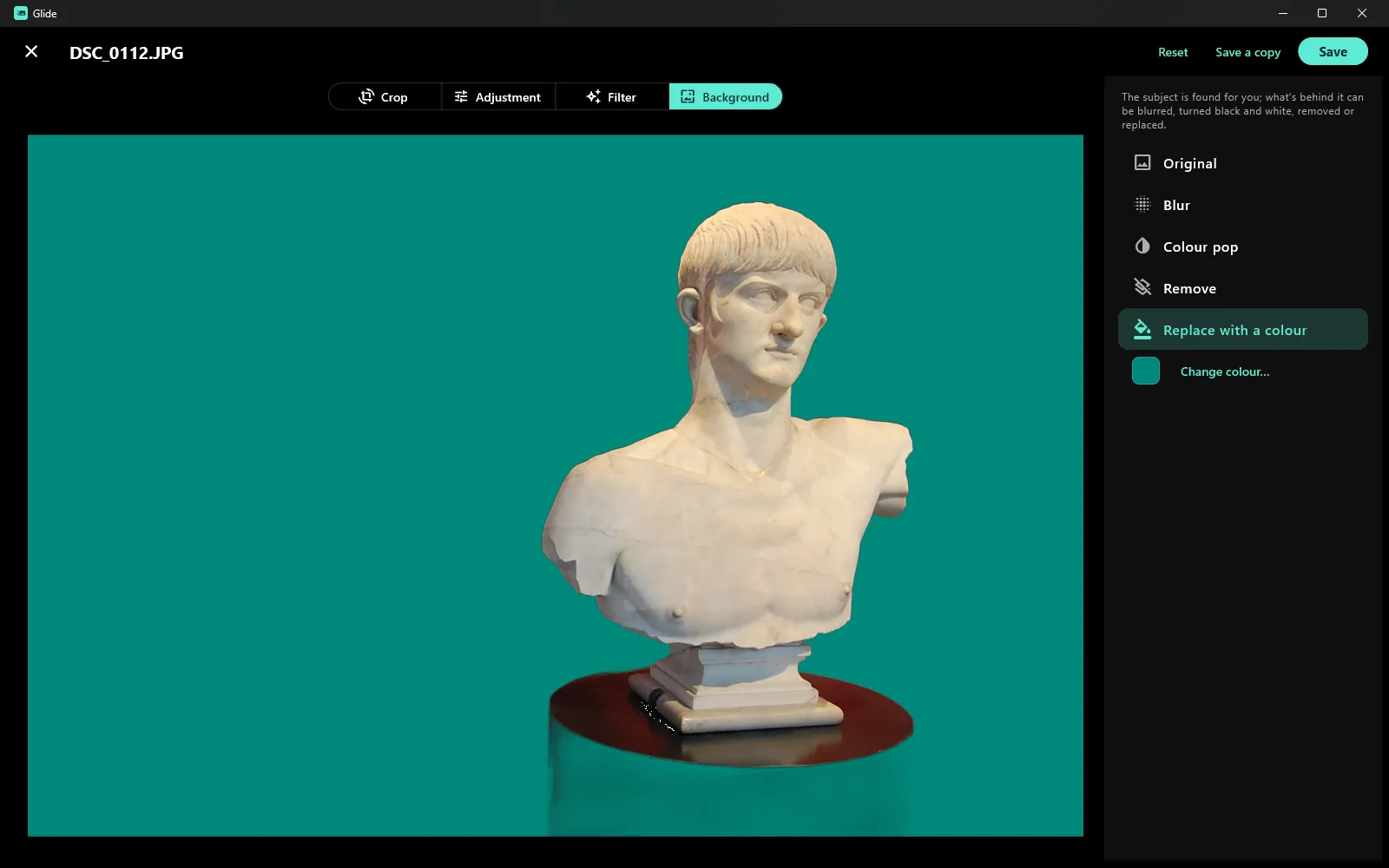
A marble bust with the museum behind it replaced by a plain teal background
Remove or replace the background. Take the background away for a transparent PNG, or swap it for any colour.How: In Edit, open Background and choose Remove, or Replace with a colour.
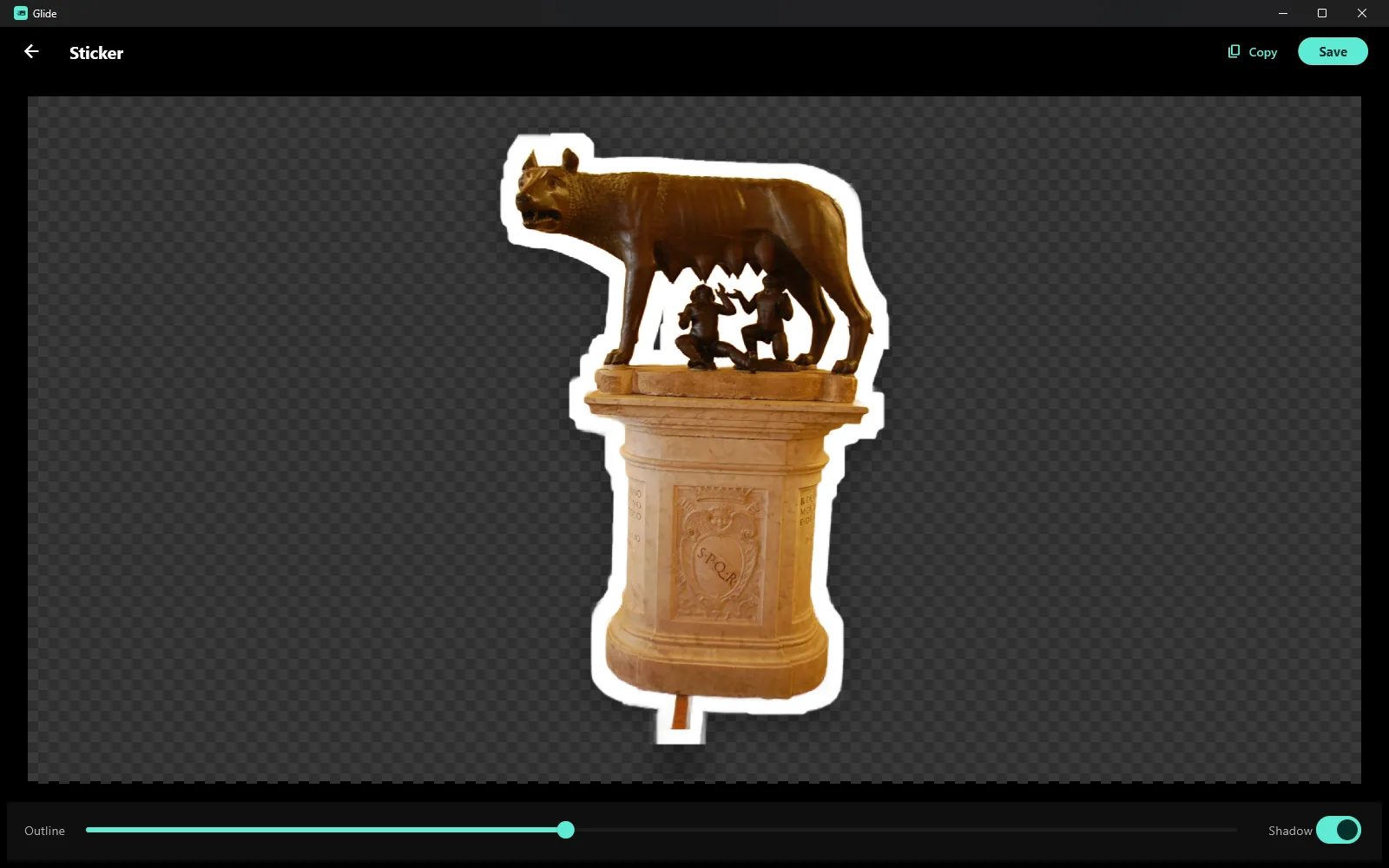
The Capitoline Wolf statue cut out of its photo as a sticker, with a white outline and a soft shadow
Make a sticker. Cut the subject out with an outline and a shadow, then copy it straight into a chat or a document.How: Click a picture, then Sticker under the preview. Set the outline and the shadow, then Copy or Save.
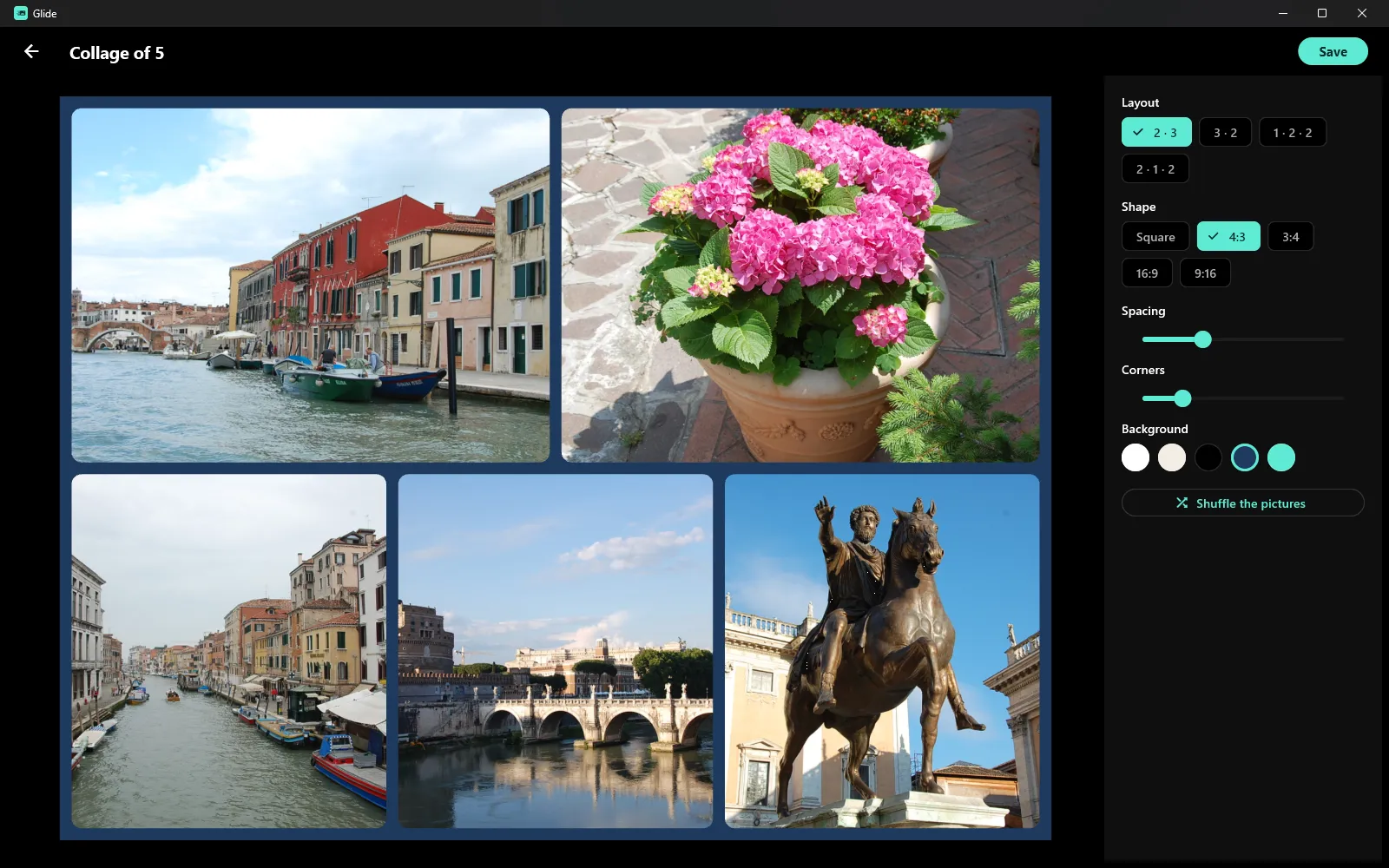
A collage of five photos from Venice and Rome, two above and three below, on a navy background
Put a collage together. Pick a few pictures and choose a layout, a shape, the spacing, the corners and a background.How: Select 2 to 9 pictures, then choose Collage under the preview.